

MSEdgeRedirect Browser Redirect Tool for Windows
Use MSEdgeRedirect to redirect Microsoft Edge links to your preferred browser and enjoy a faster, smoother Windows browsing experience.
- No Malware
- Under 5 MB
- Win 10/11
500K+
Total Downloads
4.8★
User Rating
4.2 MB
File Size
MIT
Open Source License
- About the Tool
What is MSEdgeRedirect?
MSEdgeRedirect is a lightweight Windows utility designed to redirect Microsoft Edge-specific links to your preferred web browser automatically. Many Windows features, such as Search, Widgets, Cortana, and News feeds, force links to open in Microsoft Edge even when another browser is set as the default. MSEdgeRedirect solves this issue by intercepting those links and opening them directly in browsers like Chrome, Firefox, Brave, Opera, and others.
The software works quietly in the background while maintaining a smooth and seamless Windows experience. It gives users more control over their browsing preferences without changing core Windows functionality. With easy setup, low system resource usage, and reliable redirect performance, MSEdgeRedirect has become a popular solution for users who want complete browser freedom on Windows 10 and Windows 11 systems.
- Why Users Love It
Powerful Features That Set It Apart
Discover the powerful features of MSEdgeRedirect, designed to give users complete control over browser redirects and improve the overall Windows browsing experience.
Smart Link Redirection
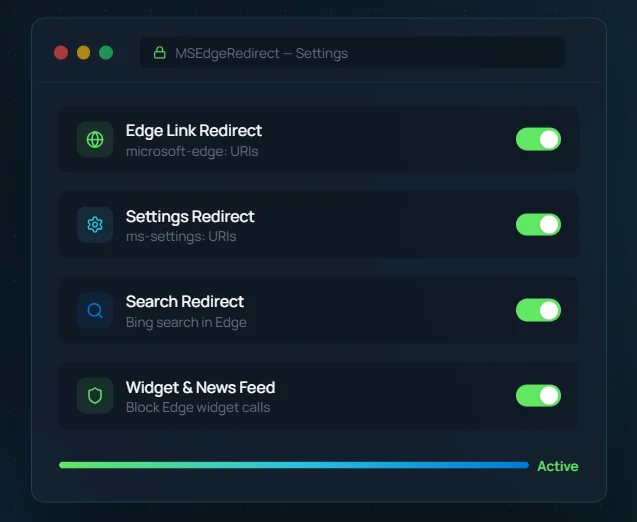
Automatically redirects microsoft-edge links to your preferred browser across Windows search, widgets, and system apps.
Zero Background Process
Lightweight and optimized architecture with no unnecessary RAM usage or resource-heavy background services.
Fully Open Source
Transparent source code available publicly with community-driven development and complete customization freedom.
Windows 10 & 11 Support
Designed for modern Windows systems with full compatibility for the latest Edge redirect methods and updates.
One-Click Setup
Quick installation experience with easy configuration options suitable for both beginners and advanced users.
Privacy-First Design
No telemetry, analytics, or hidden tracking. Your browsing preferences and system activity remain private.
- Simple Process
How MSEdgeRedirect Works
MSEdgeRedirect works by detecting Microsoft Edge-specific links created by Windows and automatically redirecting them to your preferred browser. The process runs smoothly in the background to provide a seamless browsing experience without changing normal Windows functionality.
Detect Edge Links
The software continuously monitors Edge only links generated by Windows features such as Search, Widgets, Cortana, and News feeds. These links are normally forced to open in Microsoft Edge by default.
Intercept Requests
Before Microsoft Edge launches, MSEdgeRedirect intercepts the request and captures the link in real time. This prevents Windows from forcing the link to open in Edge.
Redirect to Preferred Browser
After intercepting the request, the tool instantly redirects the link to the user’s selected default browser such as Chrome, Firefox, Brave, Opera, or other supported browsers.
- Benefits
Benefits of Using MSEdgeRedirect
MSEdgeRedirect helps users improve their Windows browsing experience by providing greater flexibility, smoother navigation, and better control over browser behavior.
Freedom to Use Any Browser
Stop being forced into Microsoft Edge and open Windows links directly in your preferred browser such as Chrome, Firefox, Brave, or Opera.
Better Productivity
Keep all browsing sessions organized within a single browser to improve focus, reduce distractions, and create a smoother workflow during daily tasks.
Faster Workflow
Eliminate the need to manually copy and paste links from Edge into another browser. Links open instantly in the browser you already use.
️ Cleaner Browsing Experience
Reduce interruptions caused by automatic Microsoft Edge launches and avoid unnecessary browser switching while using Windows features.
Improved User Control
Customize how Windows handles web links and gain more control over your browsing preferences without changing core system functionality.
- Compatibility
System Requirements
Operating System
Compatible with Windows 10 (2004+) and all modern Windows 11 versions.
Processor
Supports both x64 and ARM64 system architectures.
Memory Usage
Extremely lightweight with zero idle RAM usage during normal operation.
Disk Space
Requires approximately 10 MB including settings and configuration files.
Supported Browsers
Works with Chrome, Firefox, Brave, Vivaldi, Opera, and other modern browsers.
Permissions
Administrator access may be required during initial IFEO configuration setup.
- Supported Browsers
Compatible Browsers
MSEdgeRedirect works with a wide range of modern browsers, allowing users to redirect Microsoft Edge links smoothly and efficiently.
Google Chrome
Open Windows search results, widgets, and Edge-specific links directly inside Google Chrome for a faster and more familiar browsing experience.
Mozilla Firefox
Enjoy a more private browsing environment by automatically redirecting Windows generated links into Mozilla Firefox.
Brave Browser
Use Brave Browser for a cleaner and ad-blocked browsing experience while preventing forced Microsoft Edge launches.
Opera Browser
Redirect Windows system links directly into Opera and continue browsing with its built-in productivity tools and features.
Vivaldi Browser
Maintain a highly customizable browsing workflow by opening Windows generated links directly in Vivaldi.
Other Chromium Browsers
MSEdgeRedirect also supports many Chromium-based browsers, giving users more flexibility across different browsing platforms.
- Installation Guide
Simple Setup Process for MSEdgeRedirect
Setting up MSEdgeRedirect is quick and beginner-friendly. Follow the steps below to start redirecting Microsoft Edge links to your preferred browser.
Download the Software
Download the latest version of MSEdgeRedirect from the official release source to ensure security, compatibility, and updated features.
Install the Utility
Open the installer file and follow the on-screen instructions to complete the installation process within a few moments.
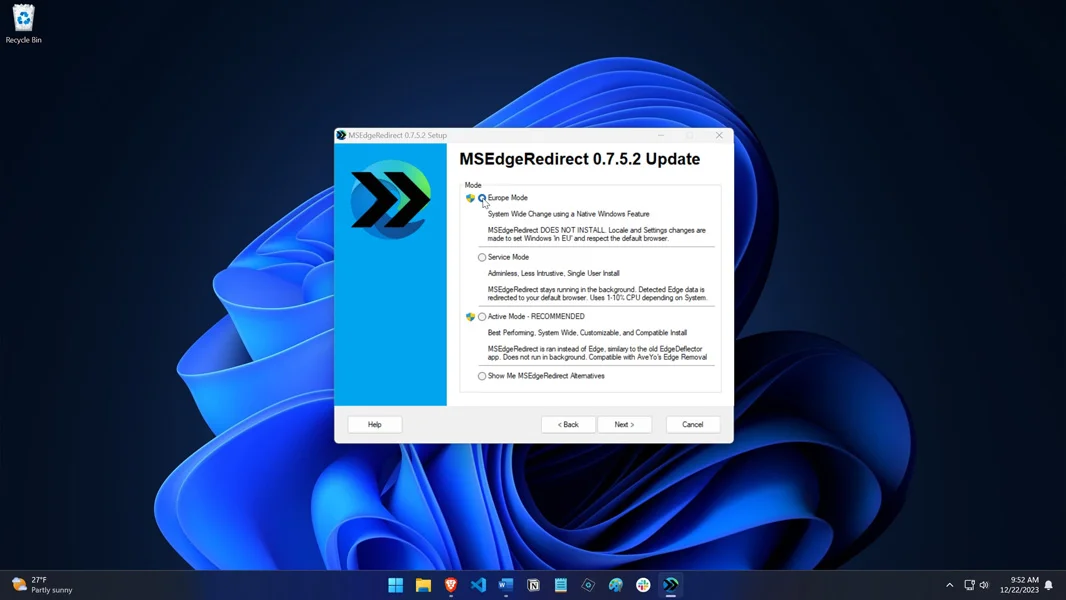
Choose Redirect Method
Select the recommended redirect method during setup for better compatibility with Windows features and browser behavior.
Set Your Default Browser
Make sure your preferred browser is already selected as the default browser inside Windows settings before using the software.
Enable Background Service
Allow the application to run in the background so it can continuously monitor and redirect Edge-specific links generated by Windows automatically.
- The Right Choice
Why Choose MSEdgeRedirect Over Alternatives?
No Running Service Required
Unlike tools that constantly run background services, MSEdgeRedirect uses IFEO technology and activates only when required. This approach keeps system resource usage extremely low with zero unnecessary idle consumption.
Regularly Maintained & Updated
The project continues to receive ongoing updates to remain compatible with new Windows builds, Edge behavior changes, and Microsoft system modifications. The GitHub repository remains actively maintained.
Handles All Edge Triggers
MSEdgeRedirect does more than redirect standard web links. It can also intercept taskbar Bing searches, widget URLs, Microsoft service links, Copilot triggers, and Windows Store browser calls.
Clean Uninstall Experience
The software can be fully removed at any time. During uninstall, all IFEO entries are cleared automatically and Microsoft Edge behavior is restored without leftover registry changes or system modifications.
- Honest Review
Pros & Cons
An unbiased look at MSEdgeRedirect to help you make an informed decision before downloading.
Advantages
Completely free — No premium version, no paywall, and no locked features behind subscriptions.
Zero resource usage — IFEO-based technology avoids unnecessary RAM or CPU consumption.
Open source & auditable — Publicly available source code ensures transparency and trust.
Comprehensive coverage — Redirects Search, Widgets, Settings links, Copilot, and Store URLs.
Easy to uninstall — Removes redirect entries cleanly without leftover modifications.
Limitations
Windows only — Depends on Windows-specific IFEO functionality and is unavailable elsewhere.
Administrator access needed — Setup requires elevated permissions for redirect configuration.
May affect Edge-specific features — Certain Windows features may behave differently after redirects.
Windows updates can interfere — Some updates may reset redirect settings automatically.
No GUI for portable version — Portable builds may require manual command-line setup.
- Visual Tour
Screenshots
- Comparison
MSEdgeRedirect vs Alternatives
An unbiased look at MSEdgeRedirect to help you make an informed decision before downloading.
| Feature | MSEdgeRedirect | EdgeDeflector | MSEdgeRedirect Legacy |
|---|---|---|---|
| Background Process | None (IFEO) | Required | None (IFEO) |
| ms-settings: Redirect | ✓ | ✕ | ✓ |
| Widget Redirect | ✓ | ✕ | ✕ |
| Search Bar Redirect | ✓ | Partial | ✕ |
| Active Development | ✓ | Stopped | Stopped |
| Win 11 24H2 Support | ✓ | ✕ | ✕ |
- Community Feedback
What Users Say
"Finally, Windows Search opens in Firefox like it should. I tried EdgeDeflector before but it kept crashing after Windows updates. MSEdgeRedirect has been rock solid for months."
Alex K.
Windows 11 User"As a developer, I appreciate that this uses IFEO instead of running a service. Clean, efficient, and the source code is well-structured. This is how Windows utilities should be built."
Sarah R.
Software Developer"Works great for redirecting links. The only issue is that after the Windows 24H2 update, I had to reinstall once. But the developer fixed it quickly with a new update."
Marcus T.
IT Administrator- Common Questions