
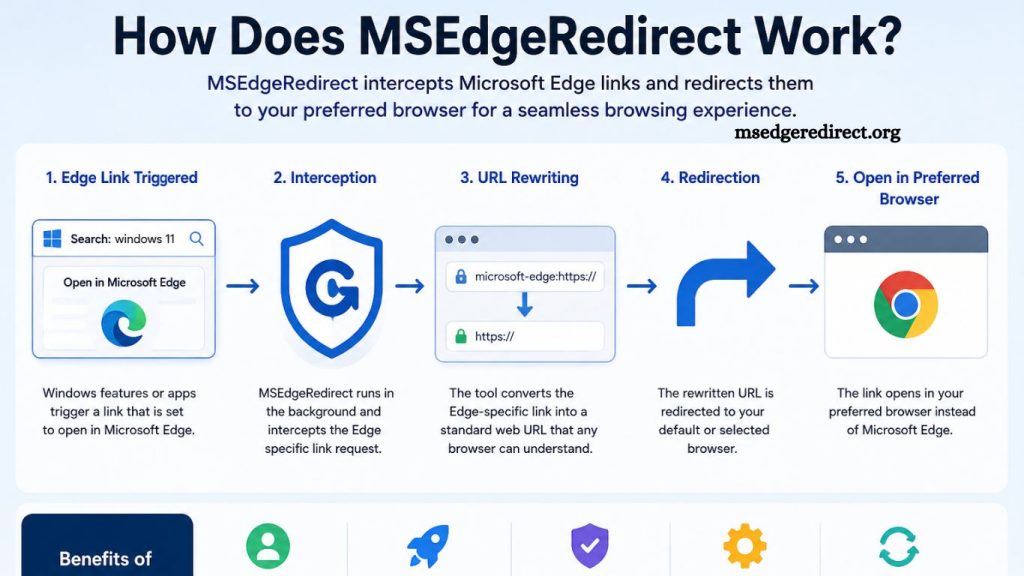
MSEdgeRedirect is a lightweight Windows utility designed to improve browser freedom by redirecting system-level links that normally open in Microsoft Edge. Many Windows users encounter situations where search results, widgets, and system shortcuts automatically launch Microsoft Edge, even when another browser is set as the default. MSEdgeRedirect solves this limitation by intercepting those forced redirects and routing them to the preferred browser.
This article explains how MSEdgeRedirect works, its core mechanism, key features, installation flow, and practical benefits in a clear, SEO-optimized, and user-focused way.
Understanding the Purpose of MSEdgeRedirect
Windows operating systems often integrate Microsoft Edge deeply into system functions. Certain links, such as Windows Search, widgets, the widgets news feed, and Cortana results, bypass default browser settings. Instead of respecting user preferences, these links open directly in Edge.
MSEdgeRedirect addresses this behavior by acting as a background redirector. The tool does not replace Microsoft Edge or uninstall it. Instead, it intercepts protocol-based calls and reroutes them to the user’s chosen browser, such as Chrome, Firefox, Brave, or others.
Read More: Safe to Use MSEdgeRedirect? Security, Risks, and Trust Review
This approach ensures greater control over the browsing experience while maintaining system stability.
Core Working Mechanism of MSEdgeRedirect
MSEdgeRedirect operates through a simple yet effective interception model. It monitors specific protocols and link-handling paths used by Windows for Microsoft Edge redirection.
Protocol Interception
Windows uses special URI schemes, such as microsoft-edge: and system-search redirect links. These links are hardcoded to open in Edge regardless of default browser settings.
MSEdgeRedirect listens for these protocol requests in the background. When such a request appears, the tool captures it before Edge processes it.
URL Rewriting
After interception, the tool rewrites the link into a standard HTTP or HTTPS format. This conversion allows any modern browser to handle the request naturally.
For example:
- Original: microsoft-edge:https://search query result
- Converted: https://search query result
This transformation is essential because standard browsers only recognize web-friendly URLs.
Redirection to Default Browser
Once the URL is normalized, MSEdgeRedirect forwards it to the user’s default browser. The system respects browser preferences set in Windows settings or within the tool itself.
This ensures consistency across all browsing activities, including system-level searches and external links.
Key Components Behind MSEdgeRedirect Functionality
MSEdgeRedirect uses a combination of lightweight background processes and Windows API monitoring to function efficiently without heavy system resource usage.
Background Service Operation
The tool runs silently in the background. It does not require continuous user interaction. Once installed, it automatically starts with Windows and begins monitoring redirect requests.
Argument Filtering System
MSEdgeRedirect includes a filtering engine that analyzes incoming requests. It identifies whether a link originates from Edge-specific triggers or standard web activity. Only Edge-bound requests are modified, while normal browsing remains unaffected.
Registry-Level Integration
Windows stores browser and protocol settings in the system registry. MSEdgeRedirect interacts with these registry paths indirectly to ensure redirect rules are applied without altering core system files.
Installation and Setup Process
Setting up MSEdgeRedirect is straightforward and designed for non-technical users.
Step 1: Installation
Users download the setup file and run the installer. The installation process places the utility in the system directory and configures startup behavior.
Step 2: Browser Selection
After installation, users choose their preferred browser. This selection defines where redirected links will open.
Step 3: Background Activation
Once configured, the tool activates automatically. No additional manual setup is required for daily use.
This simplicity makes it accessible even for users with limited technical knowledge.
Why Windows Forces Microsoft Edge Links
Understanding why MSEdgeRedirect is needed requires insight into Windows design decisions. Microsoft integrates Edge deeply into the operating system for several reasons:
- Unified browsing experience across system features
- Promotion of Microsoft services and ecosystem
- Faster rendering of built-in search and widget results
- Security and sandbox control over system links
Despite these reasons, many users prefer alternative browsers for customization, performance, or privacy reasons. MSEdgeRedirect bridges this gap by restoring user control.
Features of MSEdgeRedirect
MSEdgeRedirect offers several features that enhance browsing flexibility:
System-Wide Link Redirection
The tool captures Edge-specific links from Windows Search, Widgets, and other system components.
Lightweight Performance
Resource usage remains minimal. The tool runs efficiently without slowing down system performance.
Custom Browser Support
Users can choose any installed browser as the target destination for redirected links.
Silent Operation
No pop-ups or interruptions occur during normal usage.
Compatibility with Windows Updates
MSEdgeRedirect is designed to adapt to Windows updates that may change Edge handling behavior.
Advantages of Using MSEdgeRedirect
MSEdgeRedirect provides practical benefits for users who prefer alternatives to Microsoft Edge.
Improved User Control
System-level browsing no longer overrides user preferences. Every link follows the selected browser choice.
Consistent Browsing Experience
Search results, widgets, and external links open in one unified browser environment.
Enhanced Productivity
Eliminates unnecessary browser switching, saving time during research and daily tasks.
Better Privacy Options
Users can route traffic through browsers with stronger privacy features and tracking protection.
Limitations to Consider
MSEdgeRedirect improves flexibility but also comes with limitations:
- Dependency on Windows update compatibility
- Potential need for reconfiguration after major system updates
- Limited functionality outside Edge-specific redirects
- No impact on manually opened Edge browser sessions
These limitations do not affect core performance but should be considered for long-term use.
Is MSEdgeRedirect Safe?
MSEdgeRedirect is widely considered safe when downloaded from official or trusted sources. It does not modify core system files or disable Microsoft Edge. Instead, it operates as a redirect layer between system calls and browser execution.
Security-conscious users should always ensure they download the latest version and avoid unofficial distribution sources.
Real-World Use Case Example
A user performs a search using Windows Search. Instead of opening results in Google Chrome, the system forces Microsoft Edge to display them.
With MSEdgeRedirect installed:
- Windows sends the request to the Edge protocol
- MSEdgeRedirect intercepts the request
- URL is converted into a standard format
- Google Chrome opens the result automatically
This seamless process ensures that user preferences remain intact.
Frequently Asked Questions
What is MSEdgeRedirect?
MSEdgeRedirect is a Windows utility that redirects system-level Microsoft Edge links to a user-selected default browser.
How does MSEdgeRedirect work?
It intercepts Edge-specific protocol links, converts them into standard web URLs, and opens them in your chosen browser.
Does MSEdgeRedirect remove Microsoft Edge?
No, it does not uninstall or disable Edge. It only redirects forced links to another browser.
Is MSEdgeRedirect safe to use?
Yes, it is generally safe when downloaded from trusted sources and does not modify core system files.
Which browsers are supported?
It supports most modern browsers, including Chrome, Firefox, Brave, Opera, and others, set as the default.
Does it affect system performance?
No, it is lightweight and runs silently in the background without slowing down Windows.
Why do users need MSEdgeRedirect?
Users install it to bypass Windows, forcing certain links to open in Microsoft Edge and maintain full browser control.
Conclusion
MSEdgeRedirect provides a practical solution for users who want full control over how Windows handles web links. By intercepting Microsoft Edge-specific redirects and routing them to a preferred browser, it restores flexibility without changing core system settings.