
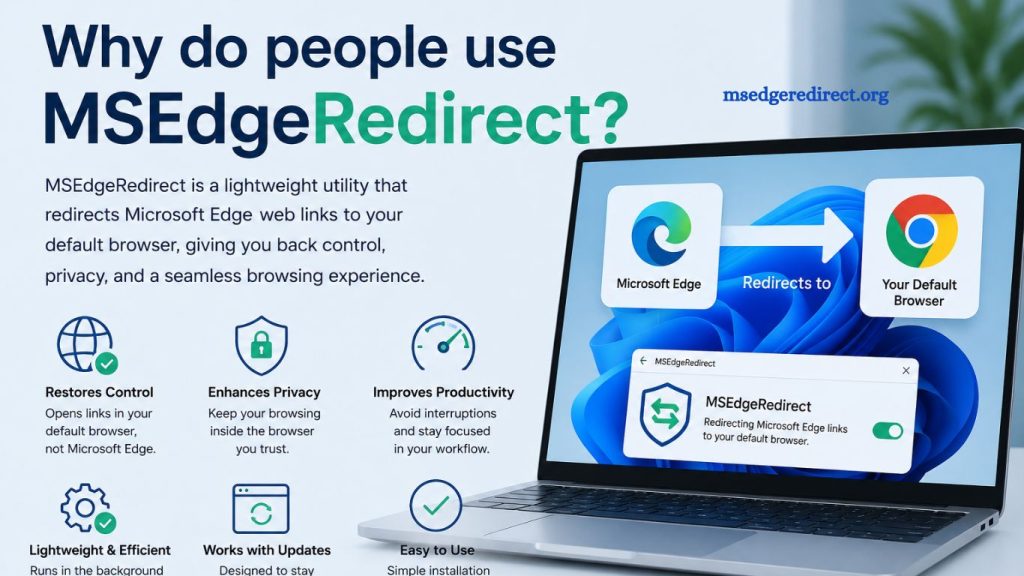
Modern Windows systems often open certain links in Microsoft Edge, even if another browser is set as the default. This behavior frustrates users who prefer Chrome, Firefox, Brave, or other alternatives. Many users seek a solution that restores control over link handling without disrupting system functionality. MSEdgeRedirect provides that solution by redirecting forced Edge links into the user’s preferred browser.
Understanding the Purpose of MSEdgeRedirect
Windows 10 and Windows 11 include built-in mechanisms that route specific system links through Microsoft Edge. These links often originate from widgets, search results, news panels, or system features like Help and Cortana-style integrations. Even when a different browser is set as the default, certain links still open in the default browser.
MSEdgeRedirect addresses this limitation by intercepting forced links and redirecting them to the user’s default browser. The tool operates silently in the background and restores expected browser behavior without modifying core system files.
Read More: MSEdgeRedirect Explained: Overview and Key Features
Why Users Seek Alternatives to Microsoft Edge
Many users choose alternative browsers for performance, privacy, or workflow reasons. Chrome offers deep integration with Google services, Firefox provides strong privacy tools, and Brave focuses on ad blocking and tracking prevention. When Windows overrides these choices, frustration grows.
Control over default applications remains a core expectation for desktop users. Forced browser behavior disrupts productivity, especially in enterprise environments where workflows depend on consistency. MSEdgeRedirect restores that consistency by ensuring links respect user preferences.
Core Reasons People Use MSEdgeRedirect
Restoring Default Browser Control
Windows sometimes ignores default browser settings for system-level links. MSEdgeRedirect ensures all links open in the selected browser. This function eliminates unexpected Edge launches and improves workflow stability.
Users benefit from predictable behavior across all applications. Developers, IT professionals, and general users experience fewer interruptions when navigating web-based resources.
Improving Productivity and Workflow Efficiency
Frequent browser switching reduces efficiency. Each forced Edge launch interrupts focus, especially when users rely on tab-heavy workflows or session-based browsing.
MSEdgeRedirect reduces friction by keeping all web activity inside one preferred browser. Consistent browsing sessions support better multitasking and faster task completion. Professionals working with documentation, dashboards, or web apps gain measurable productivity improvements.
Enhancing Privacy and User Preference Control
Privacy-focused users often avoid Edge due to concerns about telemetry or data-sharing policies. Alternative browsers frequently provide stronger privacy controls, tracker blocking, and customizable security settings.
MSEdgeRedirect allows users to maintain their chosen privacy environment without interference from system-level link redirection. Control remains in the hands of the user rather than the operating system.
Avoiding Forced Microsoft Services
Windows integrates Edge with services like Bing search, widgets, and news feeds. These integrations sometimes override system defaults and automatically open content in Edge.
MSEdgeRedirect intercepts these calls and reroutes them, reducing forced exposure to Microsoft’s ecosystem. Users gain autonomy over how and where web content loads.
Lightweight and Efficient Operation
Performance matters when selecting system utilities. MSEdgeRedirect uses minimal system resources. The tool operates quietly without heavy background processes or noticeable performance impact.
Users do not need to adjust system settings or modify registry entries. Installation remains simple, and functionality activates immediately after setup.
Compatibility with Windows Updates
Windows updates frequently adjust how Edge integration works. Many traditional workaround methods break after updates or require manual fixes.
MSEdgeRedirect adapts to these changes more effectively than manual methods. Continuous updates from the developer help maintain compatibility across Windows versions, including Windows 10 and Windows 11 builds.
How MSEdgeRedirect Works Behind the Scenes
MSEdgeRedirect functions by intercepting protocol-based links that normally trigger Microsoft Edge. Instead of passing the request directly to Edge, the tool redirects it to the user’s default browser.
This process happens in real time. The user clicks a link, the system attempts to open Edge, and MSEdgeRedirect reroutes the request instantly. The experience feels seamless because no visible intermediary steps occur.
Unlike older methods that modified system files or registry entries, this approach remains safer and more reversible. Users can uninstall the tool without long-term system changes.
Benefits for Everyday Users
Casual users benefit from a more consistent browsing experience. Clicking a link in a widget or search panel opens the same browser used for daily activity. Confusion decreases when the system stops switching applications unexpectedly.
Families and shared computers also benefit. Each user can set their own browser preferences, and MSEdgeRedirect helps enforce those choices consistently.
Benefits for Advanced Users and Professionals
Technical users often require stable environments. Developers testing web applications need predictable browser behavior. IT administrators managing systems across organizations also prefer consistent application handling.
MSEdgeRedirect supports these needs by eliminating unpredictable Edge launches. Documentation workflows, cloud dashboards, and internal tools remain accessible in the preferred browser environment.
Comparison with Traditional Workarounds
Before tools like MSEdgeRedirect, users relied on registry edits, group policy changes, or third-party scripts. These methods often introduced risks or broke after updates.
Registry edits require technical knowledge and can lead to system instability if applied incorrectly. Group policies may not exist in all Windows editions. Scripts often stop working after system changes.
MSEdgeRedirect simplifies this process. Installation replaces multiple steps with a single solution that remains maintainable over time.
Security Considerations
Security remains an important factor when using system utilities. MSEdgeRedirect focuses narrowly on link redirection and avoids deep system modifications. This limited scope reduces potential attack surfaces.
Users should always download the tool from trusted sources and keep it up to date. Regular updates ensure compatibility with Windows changes and maintain security standards.
Common Misconceptions About MSEdgeRedirect
Some users assume the tool disables Microsoft Edge entirely. That assumption is incorrect. Edge continues to function normally and remains available for manual use.
Other users believe system performance may degrade. In practice, resource usage remains minimal due to the lightweight design.
Another misconception suggests instability after updates. While Windows updates can change behavior, active development of MSEdgeRedirect helps maintain long-term compatibility.
Why MSEdgeRedirect Remains Popular
Demand for user control over software behavior continues to grow. Windows integration with Edge often feels restrictive to users who prefer alternative browsers. MSEdgeRedirect fills this gap by restoring choice without complex configuration.
Popularity also stems from simplicity. Users install the tool once and immediately regain control over link handling. No ongoing maintenance or technical intervention becomes necessary.
Practical Use Cases
Remote workers benefit from uninterrupted browser sessions across cloud tools and productivity platforms. Students gain consistent access to research materials without switching browsers.
Developers maintain stable environments when testing web applications. Office workers experience smoother navigation between documents, dashboards, and online systems.
Frequently Asked Questions
What is MSEdgeRedirect used for?
MSEdgeRedirect is used to redirect Windows system links that force Microsoft Edge to open in the user’s default browser.
Does MSEdgeRedirect disable Microsoft Edge?
No, it does not disable Edge. It only redirects specific links while keeping Edge fully functional.
Is MSEdgeRedirect safe to use?
Yes, it is generally considered safe when downloaded from trusted sources, as it only handles link redirection.
Does MSEdgeRedirect affect system performance?
No, it is lightweight and runs in the background with minimal impact on system performance.
Can I use MSEdgeRedirect on Windows 11?
Yes, it supports Windows 10 and Windows 11, including most system updates.
Why do people prefer MSEdgeRedirect?
Users prefer it to maintain control over their default browser and avoid forced Microsoft Edge redirects.
Do I need technical skills to install MSEdgeRedirect?
No, installation is simple and does not require advanced technical knowledge.
Conclusion
MSEdgeRedirect gives users practical control over how Windows handles web links, removing forced Edge redirections and supporting preferred browsers. It improves workflow consistency, enhances user autonomy, and reduces system interruptions without complex configuration. Lightweight design, broad Windows compatibility, and simple installation make it a reliable solution for users who value a stable and personalized browsing experience.