
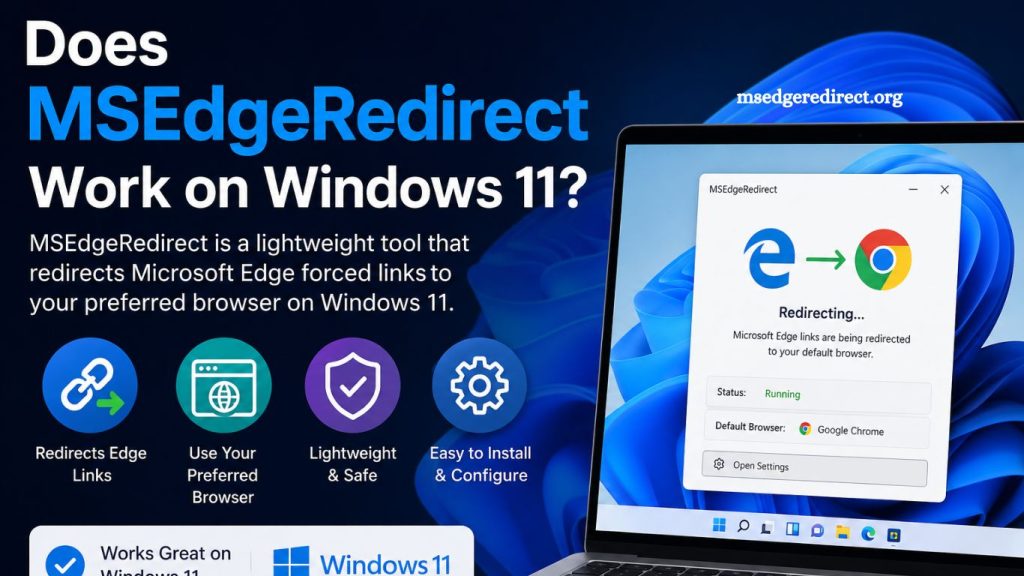
MSEdgeRedirect has gained attention among Windows users who prefer more control over how links open in their system. Windows 11 continues to deeply integrate Microsoft Edge into its ecosystem, often forcing certain links—such as search results, widgets, or system-level URLs—to open in Edge regardless of the user’s default browser. This behavior has led many users to look for tools that restore flexibility.
MSEdgeRedirect offers a practical solution by redirecting Edge-specific links to a user-selected default browser such as Chrome, Firefox, or Brave. Windows 11 users often ask whether this utility still functions properly with modern updates and security changes. The short answer is yes, but with important conditions, setup requirements, and system considerations that must be understood for smooth operation.
This article explains the compatibility, features, installation process, limitations, and real-world usability of MSEdgeRedirect on Windows 11 in a clear, SEO-friendly way.
Read More: MSEdgeRedirect Working Explained
What Is MSEdgeRedirect?
MSEdgeRedirect is a lightweight open-source utility designed to bypass Microsoft Edge forced-link handling. Instead of allowing Windows to automatically open certain web links in Edge, the tool intercepts those requests and redirects them to the user’s preferred browser.
Windows 11 includes multiple system components that trigger Edge-based browsing, including:
- Windows Search results
- News and widgets panel links
- Help documentation links
- System notifications containing URLs
MSEdgeRedirect operates in the background and ensures these links respect the default browser setting. Unlike registry edits or manual system tweaks, the tool provides a centralized and easier solution without requiring deep technical knowledge.
Focus remains on user choice, privacy control, and browser flexibility.
Does MSEdgeRedirect Work on Windows 11?
MSEdgeRedirect works on Windows 11, including the most recent updates. The tool continues to receive community support and remains compatible with the operating system’s modern architecture. However, Windows 11 introduces stricter security layers such as SmartScreen protection, Defender integration, and controlled folder access, which can affect installation or execution.
Functionality remains stable under the following conditions:
- Proper installation with administrative permissions
- Updated version of MSEdgeRedirect
- Correct the default browser configuration in Windows settings
- Allowlisting the application in Windows Security if needed
Windows 11 does not block the tool entirely, but it may flag it during installation due to its system-level behavior. Once approved, MSEdgeRedirect performs its redirection tasks effectively without interfering with system performance.
Performance remains lightweight, and system resource usage stays minimal even during continuous operation.
Key Features Supporting Windows 11 Compatibility
MSEdgeRedirect includes several features that enhance its usability on Windows 11 systems:
System Link Interception
The tool captures Edge-specific protocols before the browser launches. This ensures smooth redirection without visible delays for the user.
Default Browser Enforcement
Windows 11 often overrides default browser settings for system links. MSEdgeRedirect reinforces user preference by enforcing browser selection across multiple entry points.
Background Service Operation
The software runs quietly in the background without requiring constant user interaction. Once configured, it continues working after system restarts.
Lightweight Performance
Low CPU and memory usage make the tool suitable for both modern and older Windows 11 machines.
Customizable Settings
Users can adjust behavior based on personal preference, including turning specific redirect types on or off.
How to Install MSEdgeRedirect on Windows 11
Installation remains straightforward, although Windows 11 security prompts may appear during setup.
Step 1: Download the Latest Version
Obtain the latest release from the official repository or a trusted source.
Step 2: Run as Administrator
Right-click the installer and select “Run as Administrator” to ensure proper system access.
Step 3: Follow Setup Instructions
Complete the installation using the default settings, or customize options based on browser preferences.
Step 4: Allow Security Permissions
Windows Defender or SmartScreen may display a warning. Approve the application if downloaded from a verified source.
Step 5: Set Default Browser
Ensure the preferred browser is set as the default in Windows 11 settings for full functionality.
Step 6: Restart System
A restart ensures all services initialize correctly and redirection becomes active.
After installation, system links should automatically open in the selected browser instead of Microsoft Edge.
Real-World Performance on Windows 11
User reports indicate stable performance across Windows 11 versions, including major updates. The tool effectively handles most system-level links that previously forced Edge usage.
Performance highlights include:
- Fast link redirection without noticeable delay
- Stable operation after system updates
- Minimal conflicts with third-party browsers
- Consistent behavior across widgets and search results
Occasional issues may arise after major Windows updates, requiring the reinstall or update of MSEdgeRedirect to maintain compatibility.
Common Issues and Limitations
Despite strong compatibility, MSEdgeRedirect has limitations.
Windows Updates
Major Windows 11 updates may temporarily break or reduce functionality until the tool receives updates.
Security Warnings
Microsoft Defender may flag the tool as potentially unwanted due to its system-level behavior. This does not necessarily indicate malware, but requires user discretion.
Partial Link Coverage
Certain deeply integrated system components may still open Edge directly, especially in newer Windows builds with enhanced restrictions.
Manual Configuration Needs
Incorrect default browser settings can reduce effectiveness. Proper configuration is essential for full performance.
Safety and Security Considerations
MSEdgeRedirect is widely considered safe within the tech community when downloaded from official sources. As an open-source project, it has its code available for public review, increasing transparency.
However, users should follow basic safety practices:
- Download only from official repositories
- Avoid modified or third-party builds
- Keep software updated
- Monitor Windows security alerts carefully
Windows 11 security systems may display warnings because the tool modifies system link behavior, not because it contains harmful code.
Advantages of Using MSEdgeRedirect on Windows 11
Several benefits make the tool popular among advanced and everyday users:
- Restores browser choice freedom
- Reduces forced Edge usage
- Improves workflow efficiency
- Enhances consistency across applications
- Works quietly without user intervention
These advantages contribute to a smoother browsing experience across the Windows 11 environment.
Alternatives to MSEdgeRedirect
Users seeking different approaches can consider alternatives depending on their technical comfort level.
EdgeDeflector
Previously popular tool that redirects links, though support has become limited on newer Windows versions.
Registry Editing
Manual method to change system link behavior, though complex and risky for non-technical users.
Browser-Based Workarounds
Some browsers offer internal settings or extensions to handle specific redirects, though coverage is limited.
MSEdgeRedirect remains one of the most complete and actively maintained solutions available.
Frequently Asked Questions
Does MSEdgeRedirect work on Windows 11?
Yes, MSEdgeRedirect works on Windows 11 and successfully redirects system-level links to your preferred browser when properly installed.
Is MSEdgeRedirect safe to use?
MSEdgeRedirect is generally safe when downloaded from official sources. It is open-source and widely used, though Windows Defender may flag it due to system-level behavior.
Why does Windows 11 force Edge links?
Windows 11 integrates Microsoft Edge deeply into system features like search, widgets, and help pages, which can override default browser settings.
How do I install MSEdgeRedirect on Windows 11?
Download the latest version, run the installer as an administrator, follow the setup steps, grant permissions if prompted, and restart your system.
Does MSEdgeRedirect affect system performance?
No, it is a lightweight tool that runs in the background with minimal CPU and memory usage.
Can Windows updates break MSEdgeRedirect?
Yes, major Windows 11 updates may temporarily affect functionality, but updates to the tool usually restore compatibility quickly.
What are alternatives to MSEdgeRedirect?
Alternatives include EdgeDeflector, registry tweaks, or browser-specific workarounds, though MSEdgeRedirect remains the most reliable option for most users.
Conclusion
MSEdgeRedirect remains a reliable solution for Windows 11 users who want full control over how system links open. The tool continues to function effectively despite Microsoft’s deeper Edge integration, offering smooth redirection to preferred browsers without slowing down the system.