
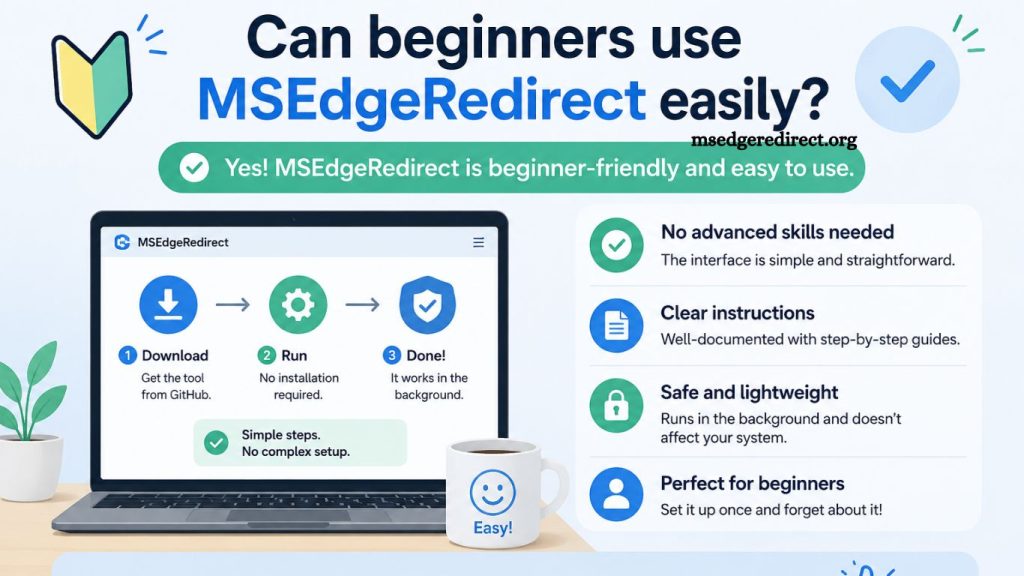
MSEdgeRedirect offers a practical solution for Windows users who want more control over how Microsoft Edge links open. MSEdgeRedirect has gained attention for its ability to reroute forced Edge links into a preferred browser. Many new users wonder whether this tool feels simple enough for beginners or requires advanced technical knowledge. Clear installation steps, lightweight configuration, and automatic redirect handling make it accessible to non-technical users, provided they follow the basic instructions carefully.
Understanding MSEdgeRedirect in simple terms
MSEdgeRedirect functions as a background utility that intercepts Microsoft Edge-specific links in Windows and redirects them to the browser chosen by the user. Microsoft often enforces certain system links, such as search results or widgets, to open in Edge regardless of default browser settings. This behavior leads many users to look for alternatives that restore browser choice freedom.
Beginner users benefit from understanding one key idea: the tool does not replace Edge or remove it. Instead, it acts as a redirect layer, changing how specific links behave. This distinction helps reduce confusion during setup and daily use.
Read More: MSEdgeRedirect Chrome Link Redirection Explained
Purpose and real-world usage
Windows systems frequently route certain links through Edge protocols like “microsoft-edge://”. These links appear in search results, widgets, and system applications. Standard browser settings do not always override this behavior.
MSEdgeRedirect addresses this limitation by intercepting those links and forwarding them to a user-selected browser such as Chrome, Firefox, or Brave. Everyday tasks like searching from the Start menu or clicking news widgets become consistent with the user’s preferred browsing environment.
Beginners often appreciate this consistency because it removes unexpected browser switches during normal computer use.
Installation process for beginners
Ease of installation plays a major role in determining whether beginners can use any software comfortably. MSEdgeRedirect keeps this process relatively simple.
Most users complete installation by following these general steps:
- Download the latest release from the official source.
- Run the installer with standard permissions.
- Choose basic configuration options during setup.
- Select preferred browser for redirects.
- Launch the application to run in the background.
No advanced coding, command-line input, or system modification is required for standard usage. This simplicity significantly improves accessibility for users with limited technical experience.
User interface and configuration simplicity
Beginners often feel intimidated by software settings, especially tools that interact with system-level behavior. MSEdgeRedirect avoids unnecessary complexity by offering a straightforward configuration interface.
Core settings typically include:
- Selection of preferred browser
- Choice of redirect method
- Startup behavior configuration
- Optional update settings
Each option uses plain language rather than technical jargon. Default settings work well for most users, reducing the need for manual adjustments. This design choice makes initial setup faster and lowers the learning curve.
Every day experience for new users
Daily usage remains almost invisible once the tool is active. Links that normally open Microsoft Edge automatically redirect to the selected browser without additional prompts or interruptions.
New users generally notice three key improvements:
- Consistent browsing experience across Windows applications
- Reduced frustration from forced Edge links
- Faster access to preferred browser workflows
The background operation means beginners do not need to interact with the tool after setup. This “set and forget” behavior contributes significantly to its ease of use.
Performances, Performance impact, and system behavior
Lightweight design ensures minimal system resource usage. MSEdgeRedirect runs quietly in the background without affecting startup speed or overall performance.
Beginners benefit from this efficiency because it eliminates the need for performance monitoring or manual optimization. The tool does not interfere with other applications and remains stable during normal Windows operations.
Common beginner concerns
New users often raise similar questions before trying MSEdgeRedirect:
- Whether the tool is safe to use
- Whether system stability might be affected
- Whether updates require manual intervention
- Whether Edge must be uninstalled
MSEdgeRedirect does not require removing Microsoft Edge. The tool operates independently and focuses solely on link handling. Safety concerns are typically low as long as users download from trusted sources and follow installation instructions correctly.
Advantages for beginners
Several advantages make the MSEdgeRedirect approachable for non-technical users:
- Simple installation process
- Clear configuration options
- Automatic background operation
- No need for system modification
- Immediate improvement in browsing control
These factors combine to create a user-friendly experience that does not overwhelm beginners with unnecessary complexity.
Limitations beginners should understand
Despite its simplicity, a few limitations exist:
- Advanced customization may require additional learning
- System updates can occasionally affect redirect behavior
- Some Microsoft services may still open Edge in restricted cases
Understanding these limitations helps beginners set realistic expectations. The tool improves browser control but does not fully remove Edge from the Windows ecosystem.
Tips for a smooth beginner experience
New users can improve their experience by following a few practical tips:
- Keep the default settings during the first setup
- Restart the system after installation for stability
- Test redirects using Start menu searches
- Avoid modifying advanced options initially
- Check updates periodically for compatibility
These small steps reduce confusion and ensure smooth performance from the beginning.
Comparison with alternative methods
Some users attempt registry edits or manual system tweaks to change browser behavior. Those methods often require technical knowledge and carry a higher risk of system issues.
MSEdgeRedirect offers a safer and more beginner-friendly alternative. Its interface replaces complex system edits with a controlled and reversible solution. This advantage makes it more suitable for users without technical backgrounds.
Real-world beginner suitability
Beginner suitability depends on three key factors: installation difficulty, usability, and maintenance requirements. MSEdgeRedirect performs well in all three areas.
Installation remains straightforward, daily usage requires no interaction, and maintenance stays minimal. These qualities confirm that beginners can use the tool without advanced knowledge or ongoing technical support.
Frequently Asked Questions
What is MSEdgeRedirect used for?
MSEdgeRedirect is used to redirect Microsoft Edge forced links in Windows to a user-selected browser.
Is MSEdgeRedirect suitable for beginners?
Yes, beginners can use it easily due to its simple installation process and user-friendly configuration options.
Do I need technical skills to install MSEdgeRedirect?
No technical skills are required. The installation process is straightforward and uses standard setup steps.
Does MSEdgeRedirect remove Microsoft Edge?
No, it does not remove Edge. It only redirects specific links to another preferred browser.
Is MSEdgeRedirect safe to use?
Yes, it is generally safe when downloaded from a trusted and official source.
Will MSEdgeRedirect slow down my computer?
No, it is lightweight and runs in the background with minimal system resource usage.
Can I change settings after installation?
Yes, users can modify browser preferences and configuration settings at any time after installation.
Conclusion
MSEdgeRedirect delivers a simple and effective way for users to regain control over browser link behavior in Windows. Its beginner-friendly setup, lightweight performance, and automatic redirection system make it easy to use without technical expertise. While a few system limitations still exist, the tool provides a reliable solution for users who prefer consistent browsing outside Microsoft Edge.